Getting started
PlayShelf browses a library server you run yourself and installs your own backups and homebrew from it: a game's base, its updates and its add-ons, as NSP, NSZ, XCI or XCZ, over HTTPS. This page goes from the SD card to a first game installed.
On this page
Early development. No release is published yet. The web simulator shows where PlayShelf stands, against a demo server of made-up games.
What you need
- A Nintendo Switch with Atmosphère.
- sys-patch or sigpatches, for the games installed to start. PlayShelf looks for them before it installs, and asks whether to go on when it finds neither.
- A library server of your own, reachable over HTTPS: AeroFoil, Ownfoil, or any web server with a JSON index of your files. See Library servers.
Install PlayShelf
- Download
playshelf.zipfrom the latest release. - Extract it to the root of the SD card: it puts
switch/playshelf/playshelf.nroin place. - Start PlayShelf from the homebrew menu. Started over a game (hold R while starting one), it has the console's full memory; from the album it runs as an applet, with less.
PlayShelf keeps its settings and its data in sd:/config/playshelf/: its servers, its downloads, its title database and its reports.
Add your server
The first start opens on Home, which welcomes you: there is no server yet.
- Add a server: its name, its
https://address on your network, over the Internet or both, and its user name and password if it has an account. See Adding a server. - Find on this network: lists the AeroFoil and Ownfoil servers that answer on the console's network, to pick one.
Install a game
Home, at the top of the rail, says where the console and its servers stand. At the top, Search looks for a game by its name (or its publisher) on every server at once, then among the console's games no server has. Tiles count the console's games, the updates and add-ons the servers have that it has not (Ⓐ on the updates: Update all, the most played games first, or the list), the downloads under way and the room left on the SD card (Ⓐ: Storage, below). Then rows: Played lately (the console's games by when they were last played, with their play time), the games with something to get (the most played first) as wide banners, Your wishlist (Ⓧ on a game's page adds it or takes it away; those a server has come first), New on your servers (the games a server has had for less than a month, from the second time PlayShelf reads it), Popular on your servers and Trending (below), the month's releases (else the servers' newest games), For you (games of your servers like the console's, by the genres of its games, the most played weighing most) and Coming soon (the next two months' games the title databases date; Ⓐ puts one on the wishlist). The play time is the console's own (every account together), read as PlayGuard reads it. Every server's catalogue is read once PlayShelf starts, one after the other; the rail's Home counts the console's games with something to get. PlayShelf opens on Home; Preferences › Start on picks another tab.
Popular and Trending come from Wikipedia: how many Wikipedias have a page on each game (Wikidata) and how often its English page was read last month against the two before. PlayShelf comes with that list and fetches the newest one once a day (Preferences › Title database › Popular games from Wikipedia, popular_online); only the games of your servers show.
Storage shows the SD card's room as a bar (the games, the rest, what is free), then To free, the large games not played for three months, and every game by the room it takes, with when it was last played. Ⓐ on one: delete it (its saves stay) or open its page.
The bell, at the right of the header, counts what is to do; Ⓨ (from a tab without its own Ⓨ) or a tap opens the list. To do: the updates and add-ons to get, a game of the wishlist a server now has, the SD card nearly full (under a tenth or 4 GB free), a download that failed; Ⓐ does it or opens where it is done. For information: the games new on the servers, the updates the title databases know and no server has yet, the downloads installed, a new version of PlayShelf; Ⓧ puts one away (Ⓨ: all of them), until what it says changes.
When the same package is on several servers read, the download comes from the best one: a server on the console's network first, then the one earlier downloads ran fastest from.
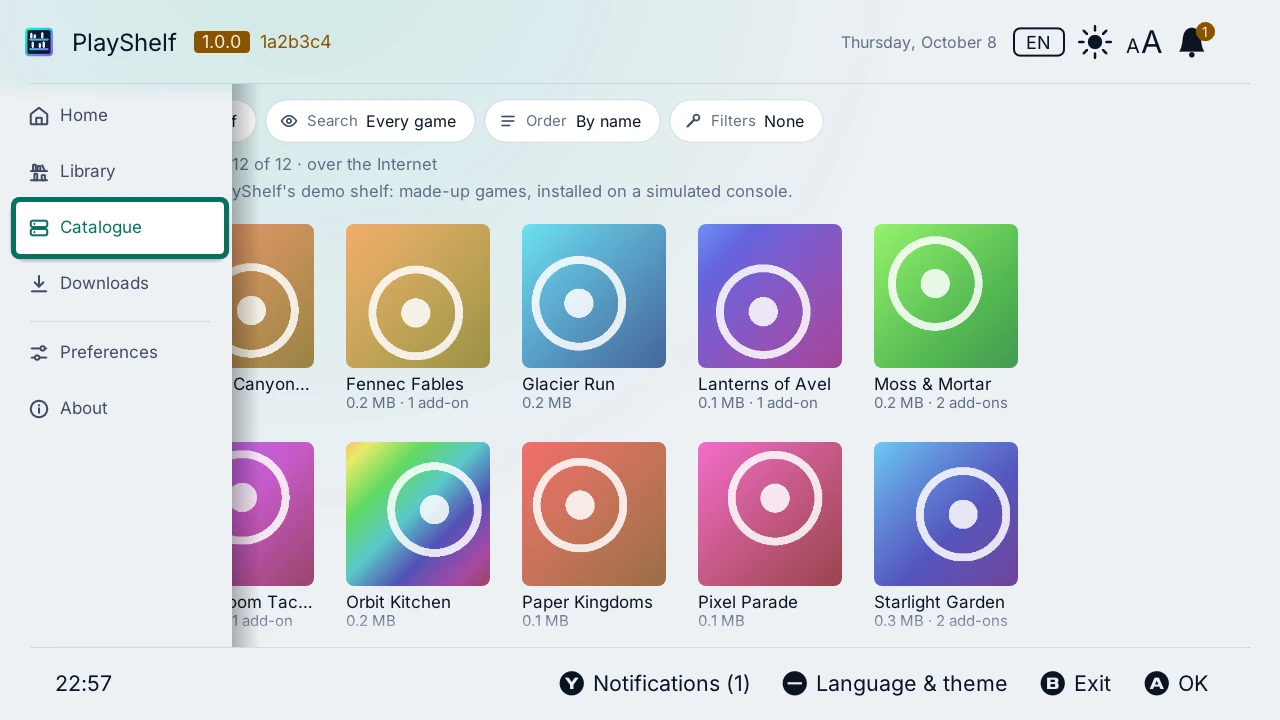
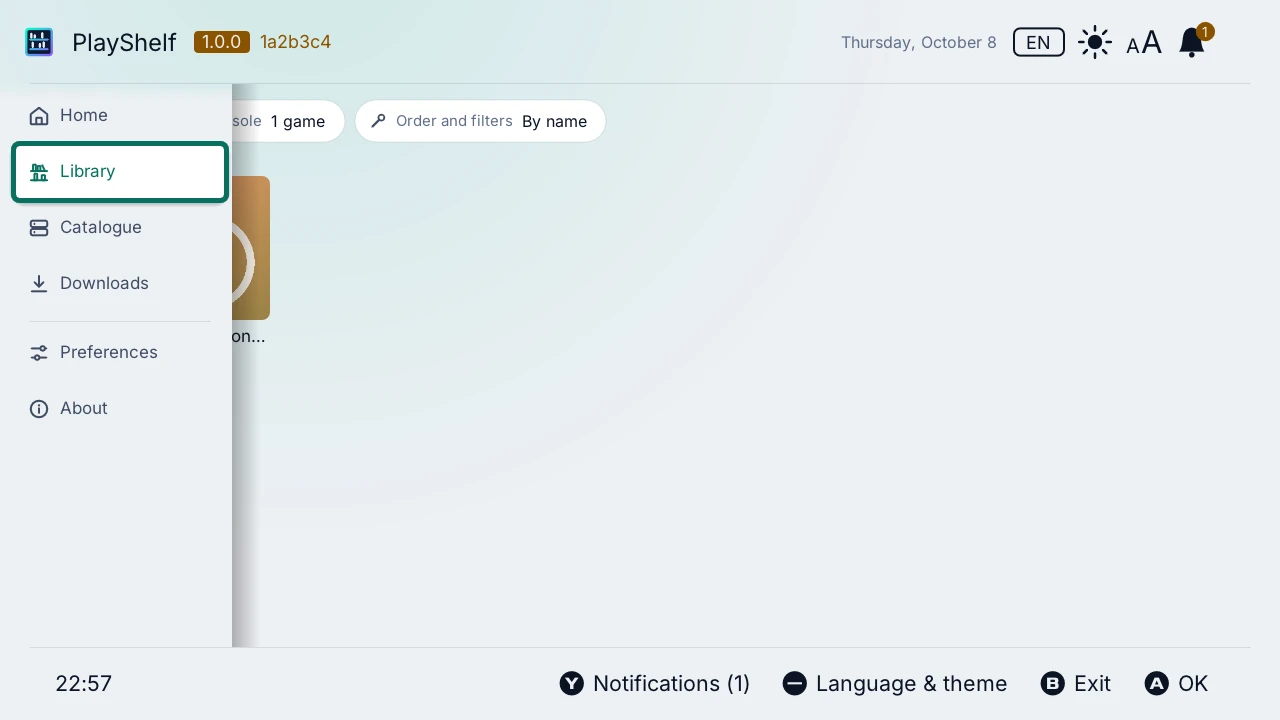
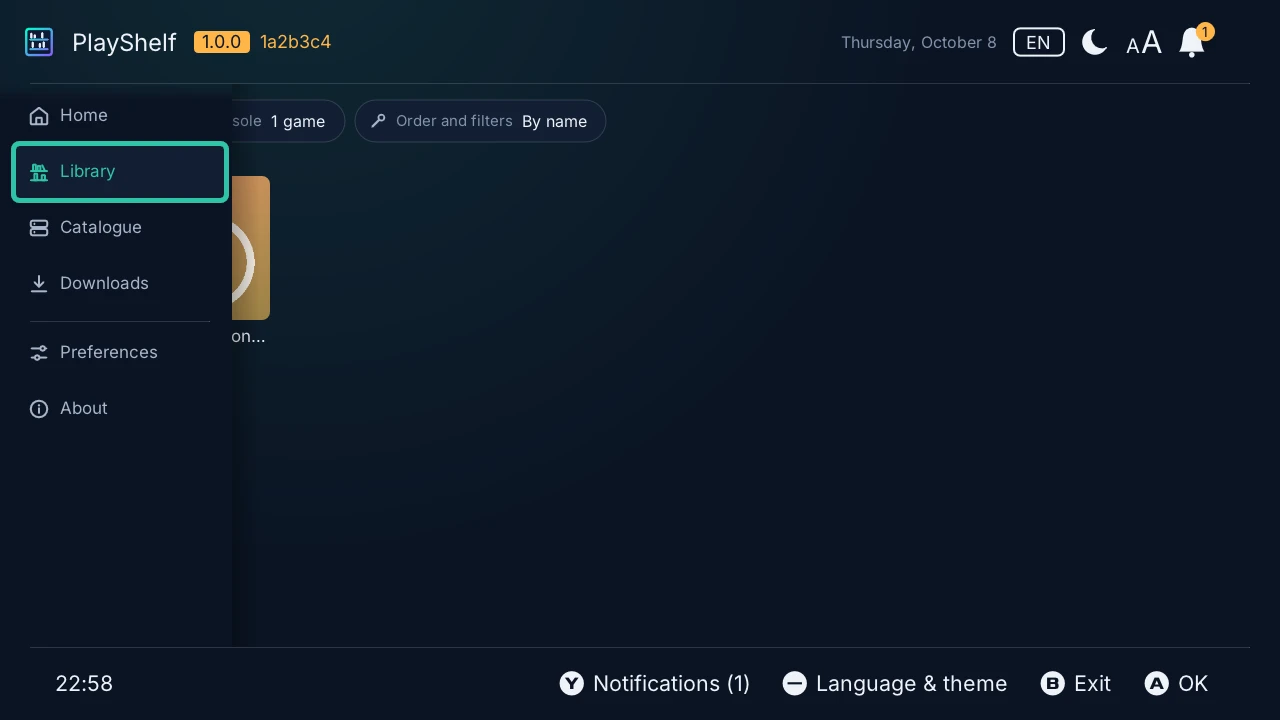
The Catalogue shows the server's games as covers, with their size and their add-ons, and a mark on the cover of a game the console has (in amber when there is an update to get). Its controls are a row of pills above them: the server, the search, the order, the filters and the section, in teal while they narrow the list. Search and Order (by name, newest, largest, publisher, or by genre as shelves: a row of covers a genre, the games not known yet on the last one, See all at the end of a full one for the whole genre) narrow it; a server with sections shows them too. Filters keep the games of a genre, of a publisher, for one player or several, in your language, by what the console has of them (not there, there, an update or add-ons to get), demos hidden. Genres, publishers, players and languages come from Nlib API as the games show: while a filter needs them, the games not known yet are asked in the background and join the list as they come (the line under the filters says how many are known). The Library has its own pills: how many games (Ⓐ reads them again) and Order and filters: by name, publisher, newest, the games with something to get first (the most played of them first), the most played, or the ones played lately; its filters also keep the games never played.
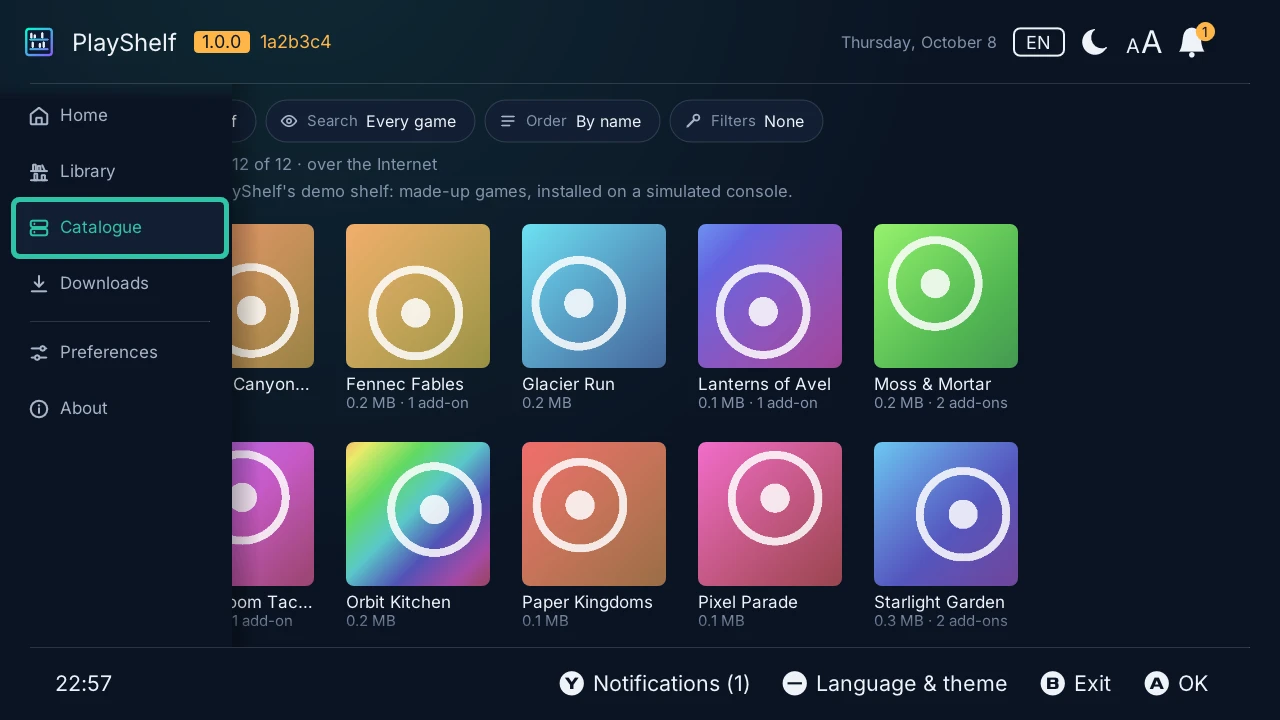
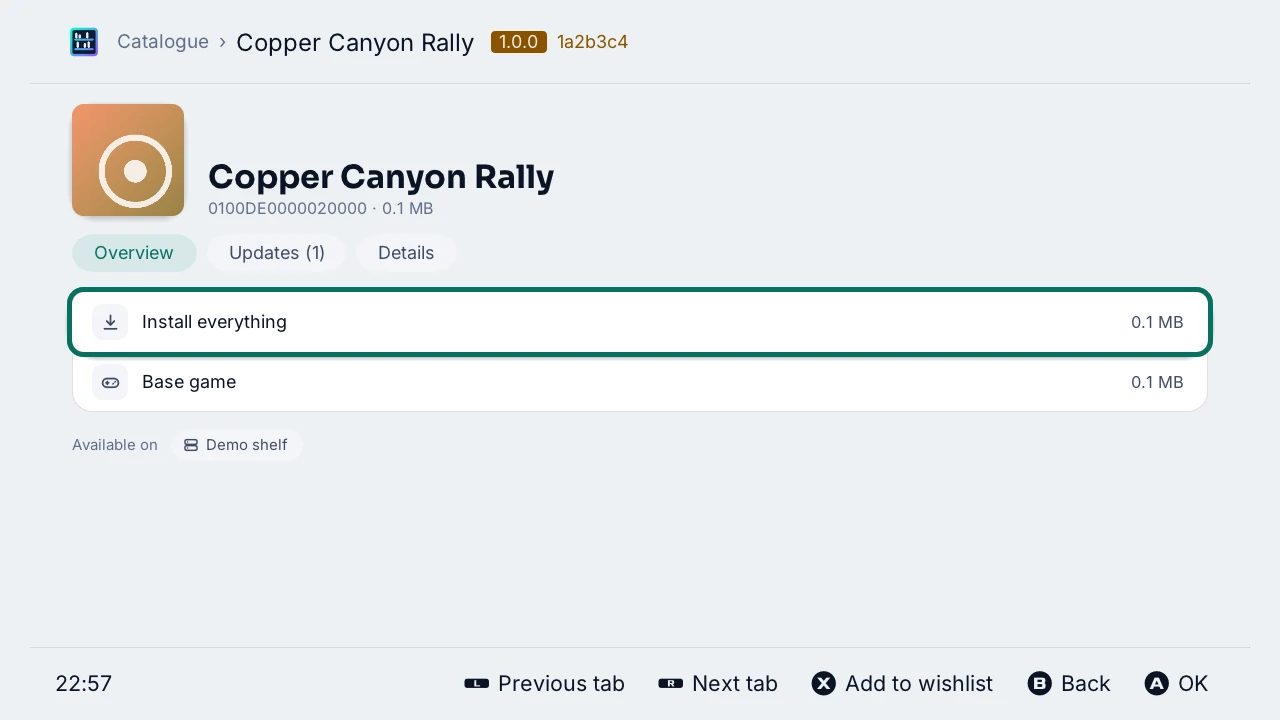
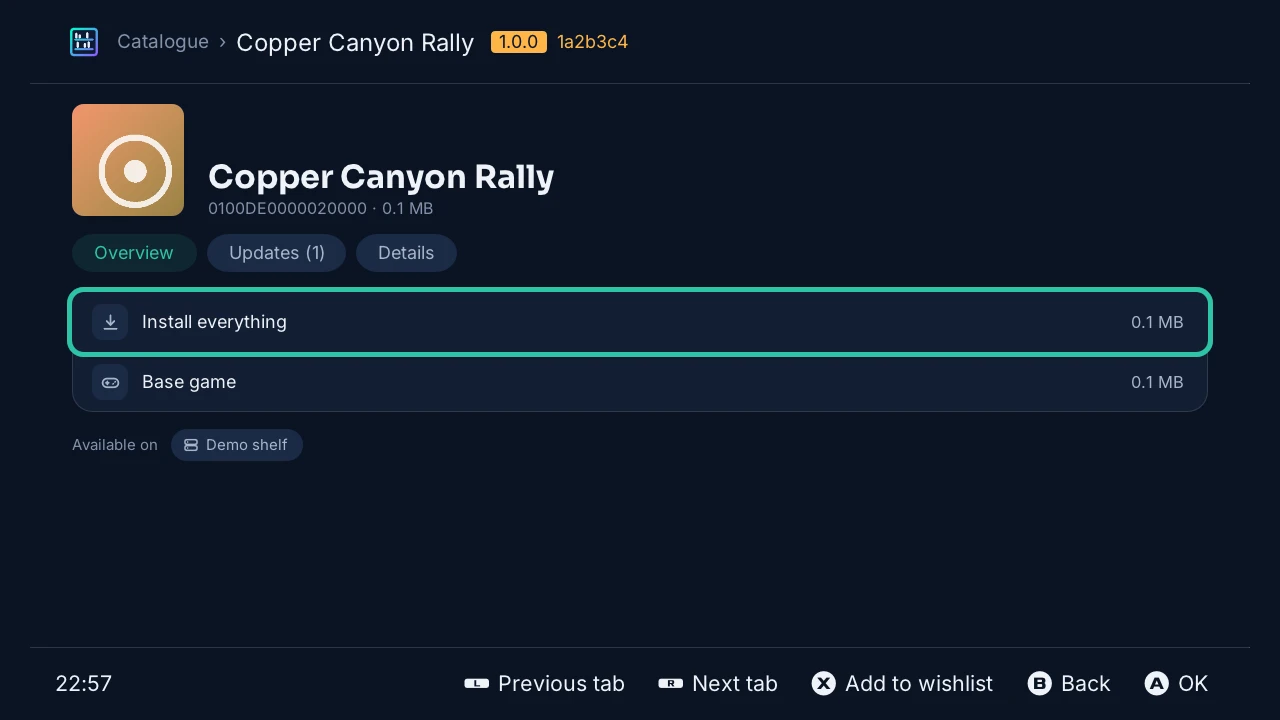
Press Ⓐ on a game for its page: Install everything, or its base game, one of its updates or one of its add-ons. Each one goes to the Downloads. The page has tabs (Ⓐ on one, or Ⓛ and Ⓡ): Overview, Updates (the version installed and the newest, the newest at once, each update), Add-ons (how many the console has, the missing ones at once, each add-on) and Details (its ids, sizes, publisher, developer, release date, genres, players, languages, age rating, and its eShop page as a QR code for a phone). When the console is online, it shows what Nlib API knows of the game in PlayShelf's language: its banner across the top with the game's name over it, its publisher and year, its genres, players and whether it is in your language as chips, a summary, its screenshots (Ⓐ shows one on the whole screen, ◀ ▶ the others), its description, and more of the catalogue's games from its publisher and in its genre. Details also say how long the console played it, how many times it started it and when it last played it. Available on names the servers that have the game; Details says what each one has of it (the base game, how many updates and the newest, how many add-ons). The Library opens the same page for a game on the console.
Follow the downloads
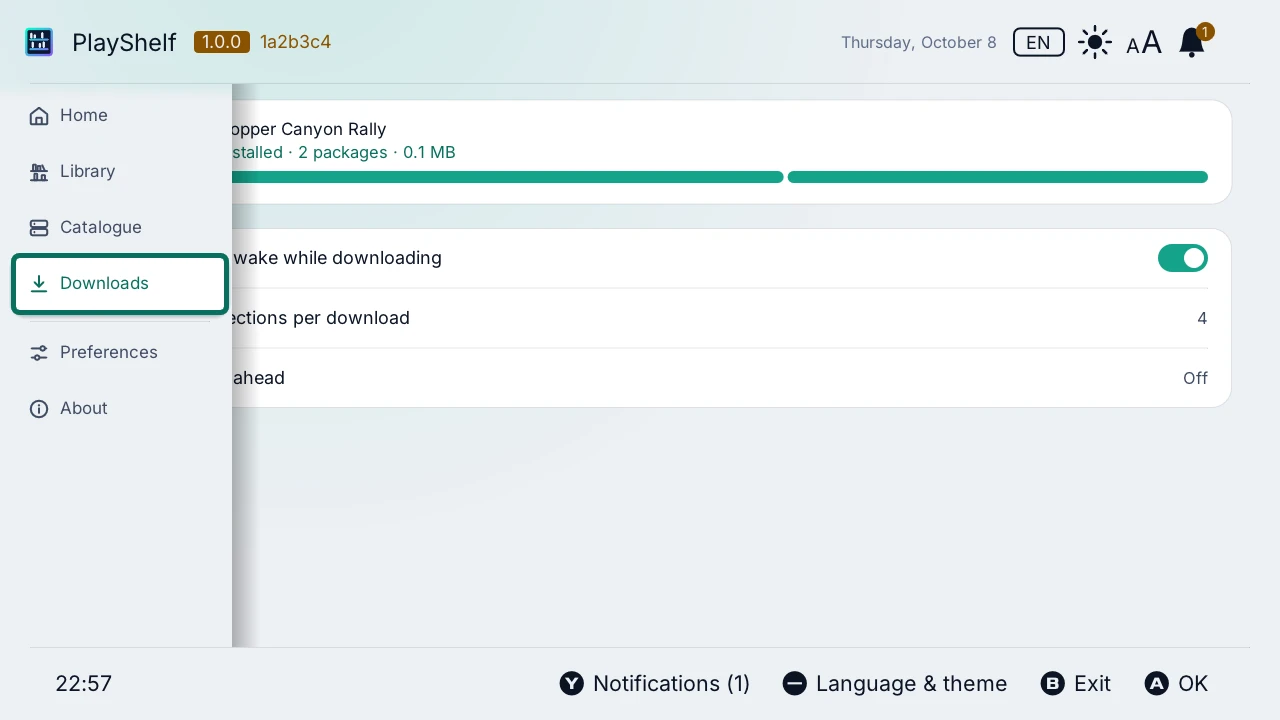
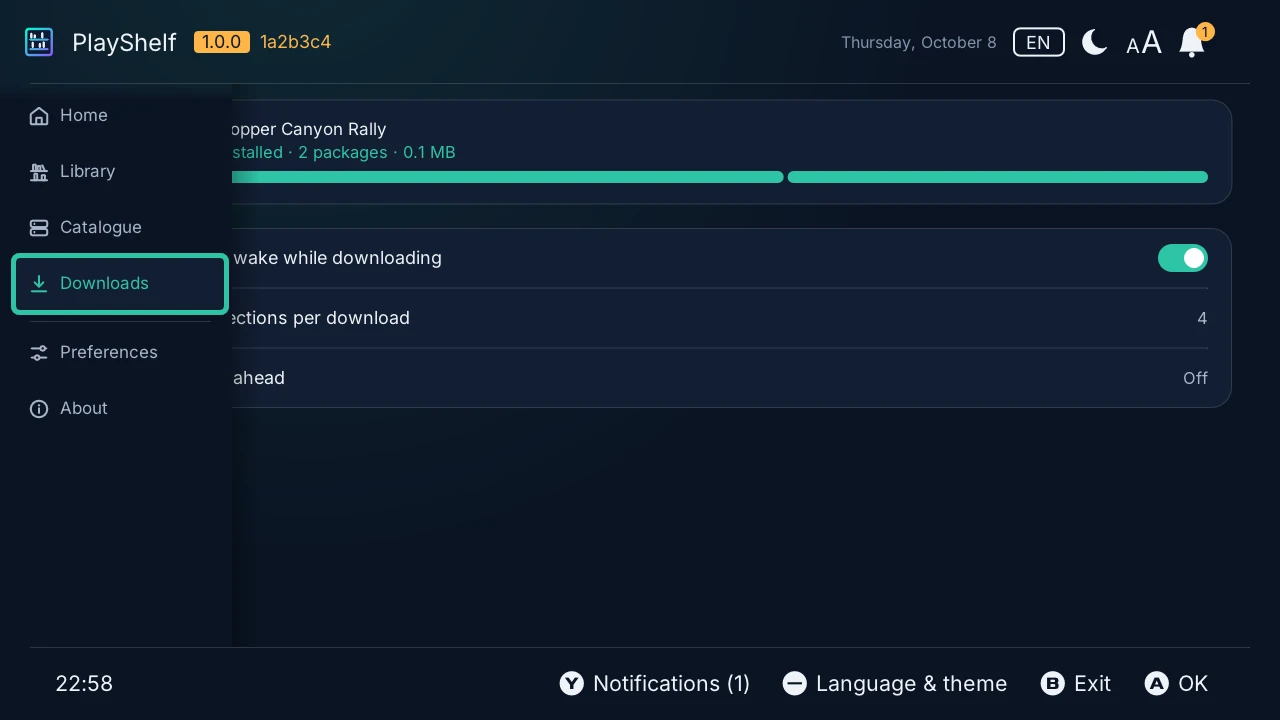
The Downloads install the packages one after the other, each with its progress, its speed and the time left. Ⓐ on a game or a package offers to pause it, resume it, try it again or remove it. Once installed, the game is in the Library. See Downloads.
Names and icons
A game that neither the console nor the server names takes its name and icon from the title database, kept on the SD card: Preferences › Title database › Download. Its sources are CyberFoil-DB, NXMeta and Ghostland by default, and you can add your own. See title_sources.
An icon that none of them has is asked of Nlib API over the Internet, for the games on screen only, then kept in the cache. Base games only: an update or an add-on shows its game's icon. Preferences › Title database › Icons and game pages from Nlib API turns it off (nlib_api).
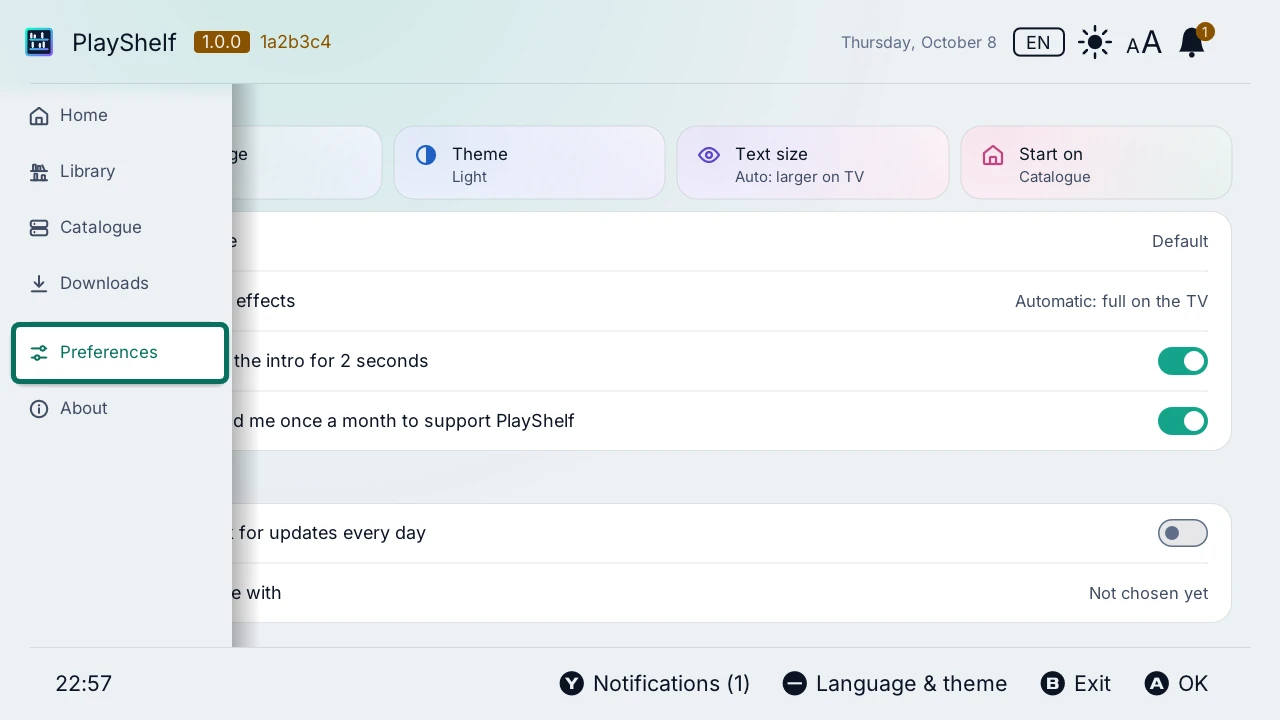
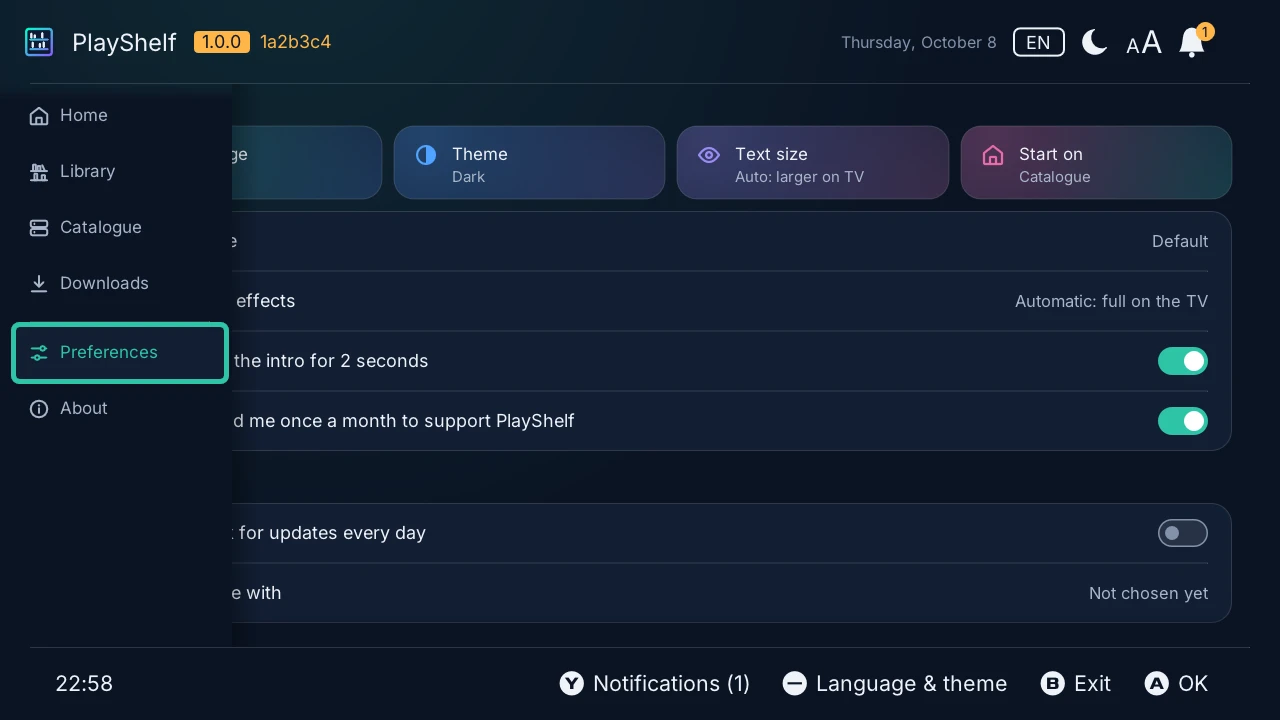
Preferences
Preferences sets the language (the console's, or one of 15), the theme and its palette (PlayShelf's, a preset or your own), the text size, the tab PlayShelf starts on, the updates and the title database. Every setting is also in config.json.